
Moodle – our learning management system
eLearning Platform Moodle
Login: https://elearning.executiveacademy.at/login/index.php
Default applications
- Calendar with dates of each module
- Assignments
- Learning modules / downloads
- News
- Evaluation forms
- Grade book
- etc.
Additional applications
sample questions and sample exam for exam preparation
- multiple-choice and single-choice questions
- answers can be graded and directly entered into the Moodle grade book
Quizzes
- Quizzes with up to 20 answers (multiple-choice questions)
- Activation either manually or at a specific date
- Clear presentation of the results
- Non-anonymous tracking of students’ participation
- Usage: elections, formation of groups, home assignments
- Educational trail
- Sequence of individual learning parts is predefined by the lecturer
- Conjunction of text, sample questions, videos, and sample exams
Implementation:
In case of interest in additional applications, please contact your program manager.
Detailed information about the digital whiteboard can be given by our IT Support Team at: ea-it-support@wu.ac.at
Setting up 2FA/MFA
To set up 2FA/MFA for your external Moodle account you need to navigate to your account settings and click on “Multifactor Authentification” > “Set up”.
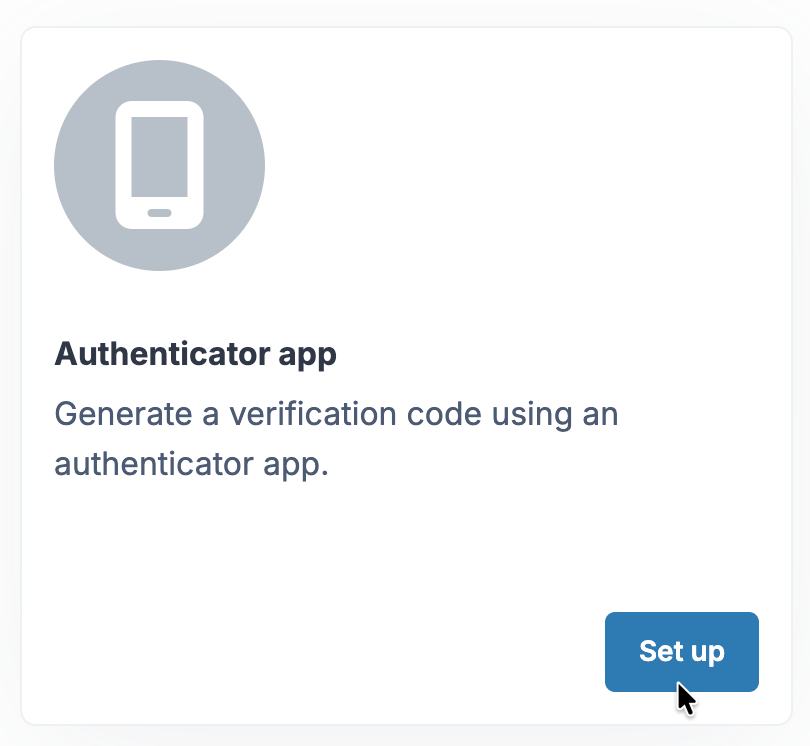
Next you will need a phone with an authentcation app. We recommend using Microsoft Authenticator.
Enter the name of your device in the “Device name”-field. Next open your authentication app on your phone, click on the plus icon in the top right corner, select “Other account” and scan the QR code displayed in Moodle.
After that you are going to receive a 6 digit code that you have to enter in the field “verification code”.
After clicking on “Save changes” your second factor will be sucessfully set up.
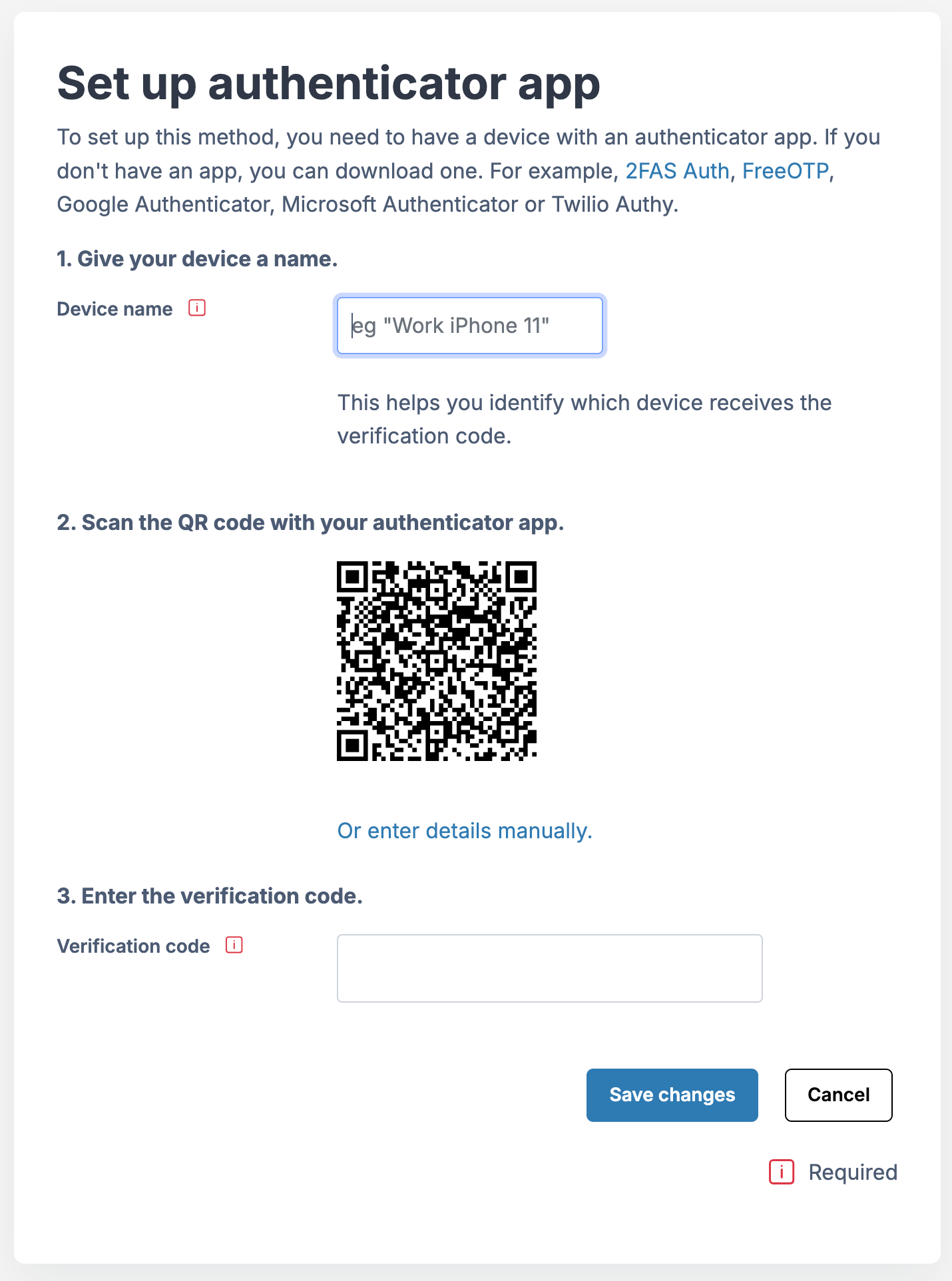
Please note: For security reasons the second factor needs to be used once every 60 days for every device you use to log into Moodle.
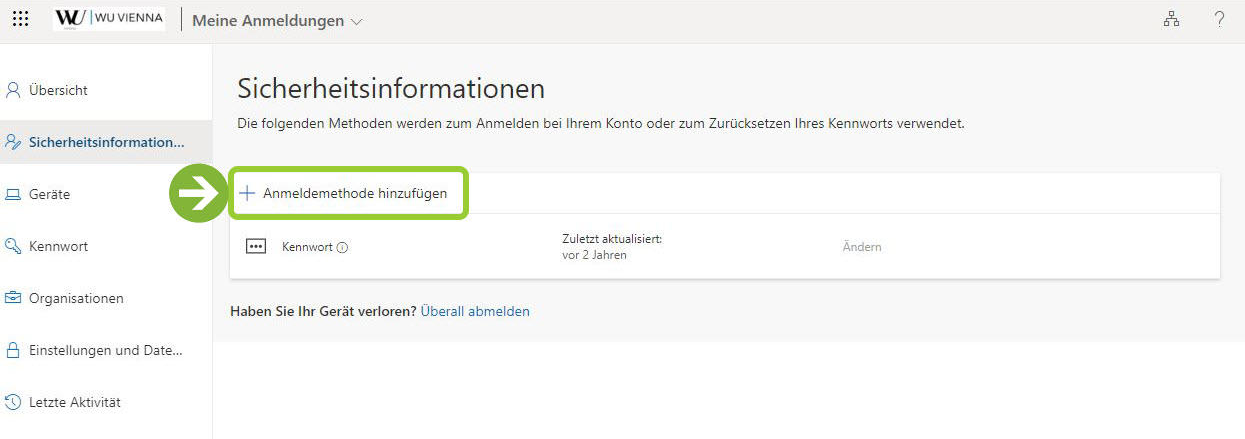
To set up 2FA/MFA for your WU account you will need a phone with an authentication app (we recommend Microsoft Authenticator) and have to sign in to Microsoft My Sign-Ins using your WU e-mail address.
Next open the Security Information section and select “Add Login Method”.
Then select “Microsoft Authenticator” as your new sign-in method and click on “Next”.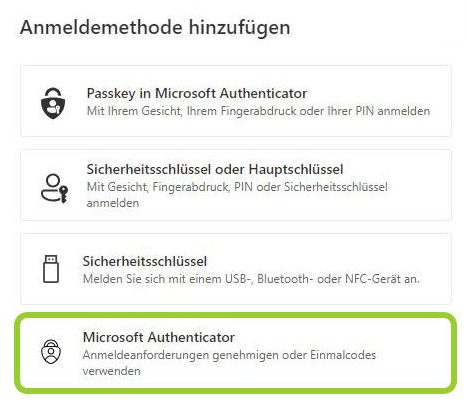
Follow the instructions on your notebook and then click “Next”.
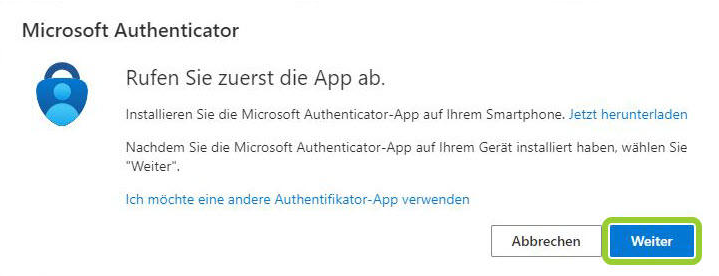
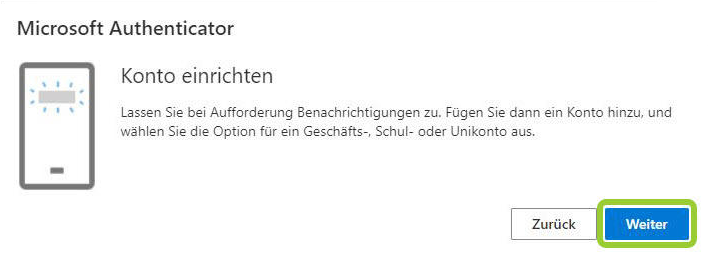
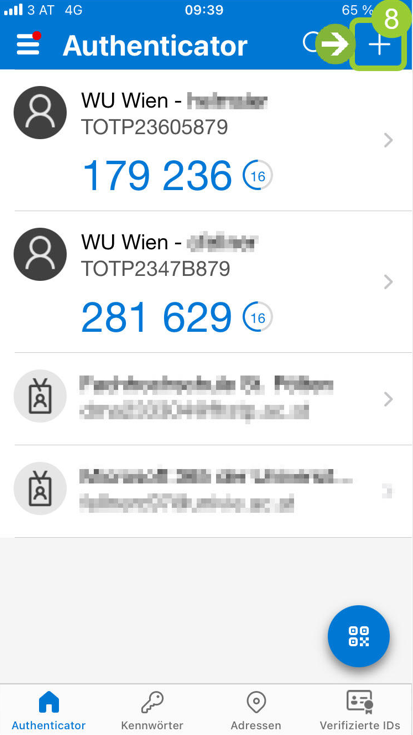
On your mobile device: in the Microsoft Authenticator app, select the “Plus” symbol in the top right corner.
Select Business or School Account and then scan QR-Code.
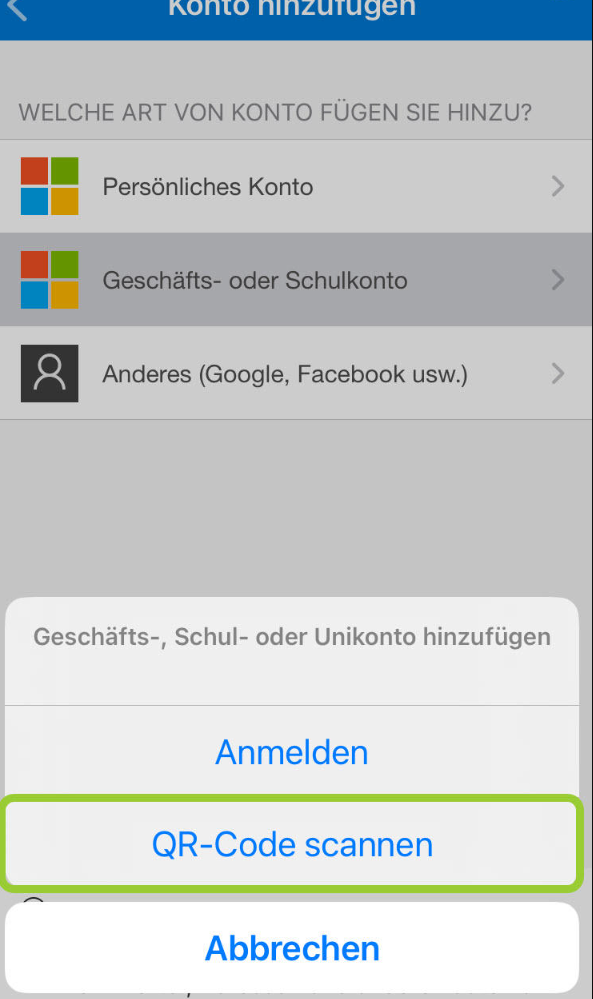
Then scan the QR code that is displayed on the notebook screen, and select “Next”.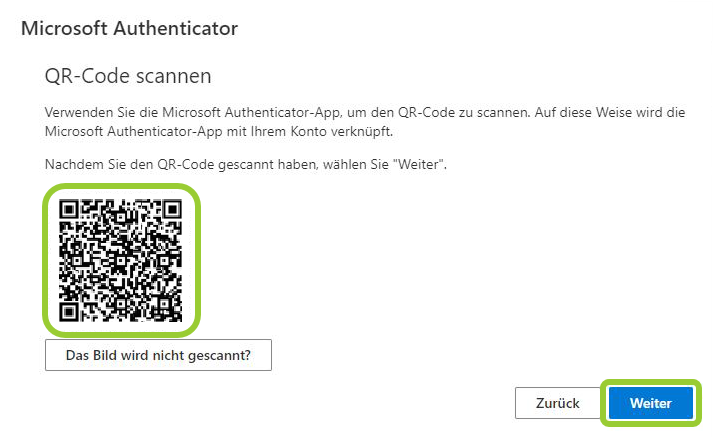
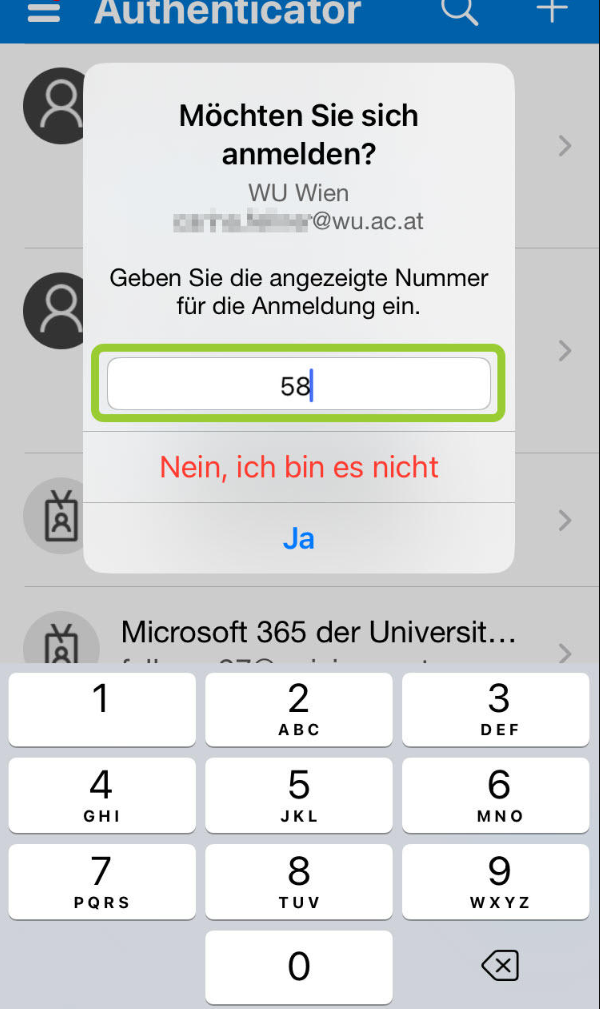
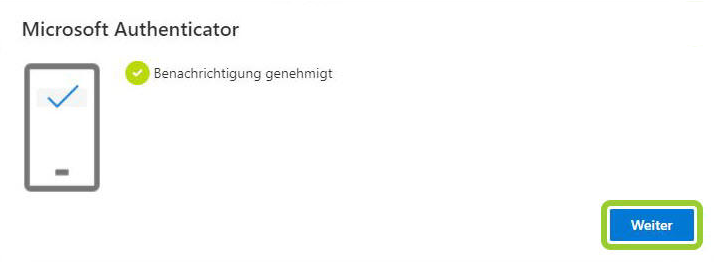
A two-digit number is now displayed on your notebook screen. At the same time, you receive a prompt on your mobile device in the Microsoft Authenticator app.
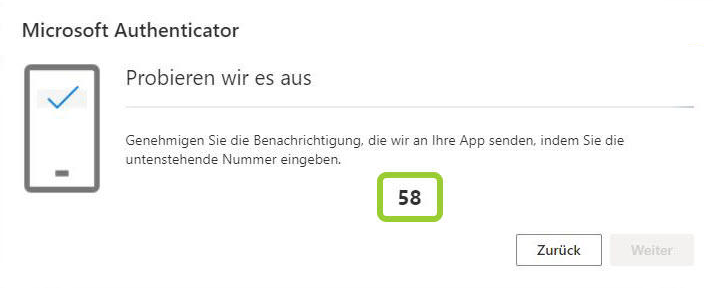
Enter the number on your mobile device and select “Yes” to confirm the verification.
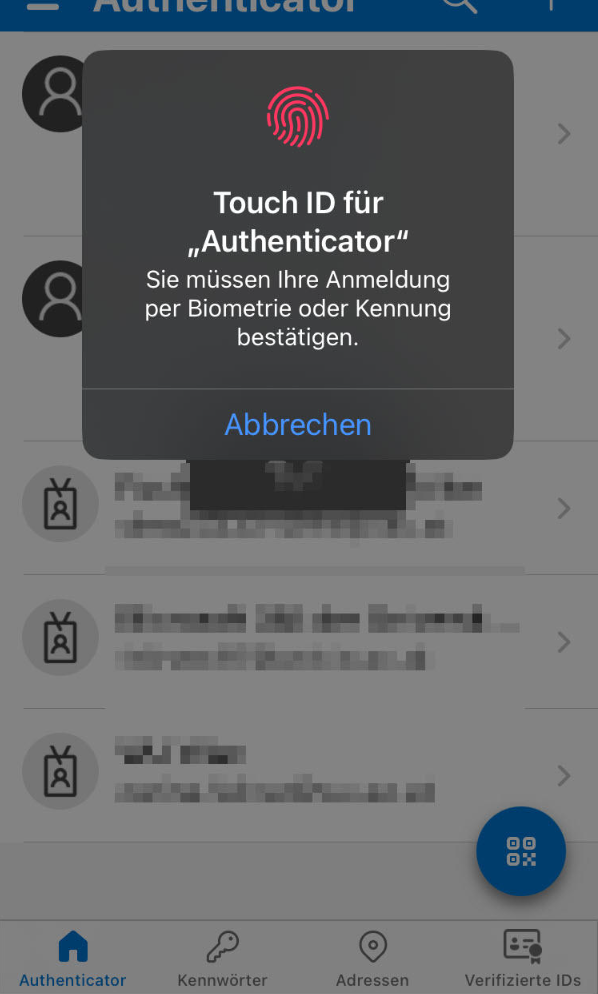
Confirm your input using TouchID, face recognition, or the lock PIN on the mobile device.
Select “Next” to complete the registration process. The Microsoft Authenticator app has been successfully registered.
Please note: Before registering for important courses and exams, we recommend logging out of your WU account and then logging back in. This avoids a 2FA prompt when you need to use our online services under time pressure.
Synchronous and Asynchronous Group Work – Microsoft Office 365
Microsoft Office 365 allows students to work on documents at the same time, similarly to Google Docs. They can access Office 365 on the web via their WU account login. Shared documents (e.g., Word-, Excel- or PowerPoint documents) can be created and made accessible to students for their group work. This platform is available only for WU students during their studies. The submission of the results of the group work has to take place on Moodle.
Usage
- Group work
- Storage for documents
- Preparation for presentations
Advantages and disadvantages
- Allows interaction between students (synchronous communication)
- Time-independent and location-independent access via web browser and Powernetidentification
- Multipurpose applications compatible with Microsoft Office programs (e.g., online-versions of PowerPoint, Word, Excel etc.)
Implementation
- EA IT team establishes the separate areas for each student group and lecturers.
- If you are interested in using this tool, please contact your program manager.
Detailed information about the digital whiteboard can be given by our IT Support Team at: ea-it-support@wu.ac.at